Choose an app for your device and view the installation instructions.
How to connect
Check that access is active and the entire private subscription link was copied without spaces. Reopen the import form and try once more. If no profile or servers appear, stop and contact support with the error text. Never send your link, QR code, HWID or server details.
Real app screenshots, cropped or permanently redacted. Orange arrows are Novesu annotations. Blank fields are intentional. Installer, permission and connected-state gaps are marked below.
Choose the Windows download on the official page. Open the downloaded installer and follow its setup steps, then open Hiddify. Use the installer that matches your PC.
When your subscription is active and device access is enabled: open Account → Connection and choose Connect / install beside your device. Your private access page opens. Copy the subscription link provided there.
3
Import
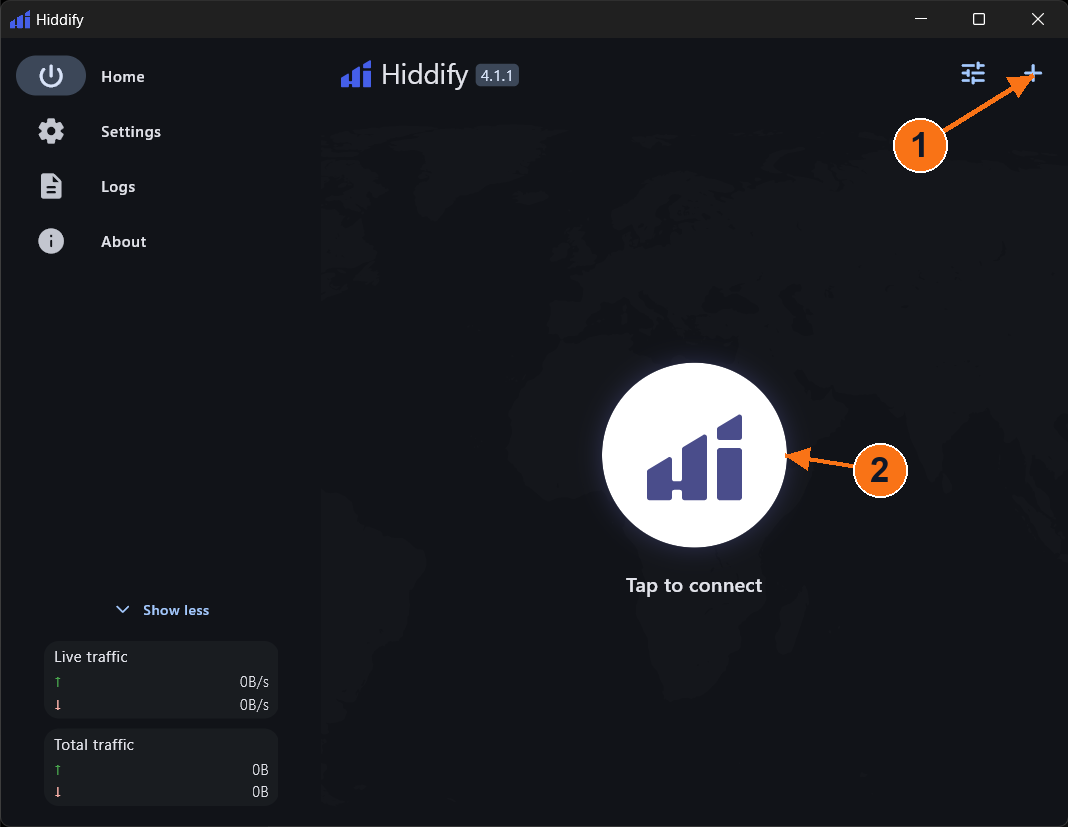
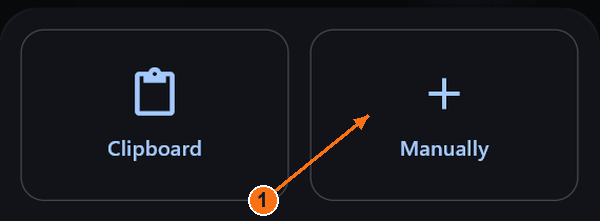
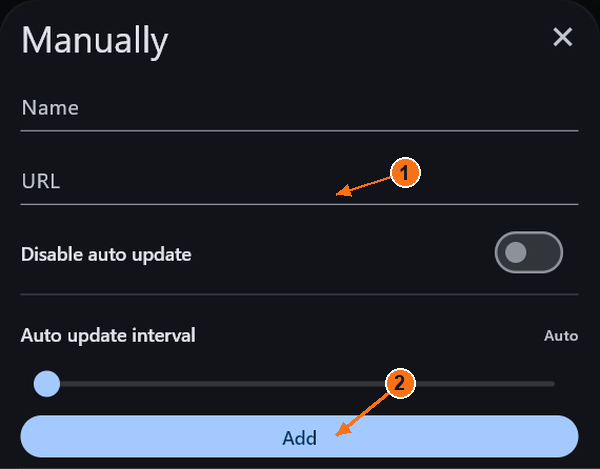
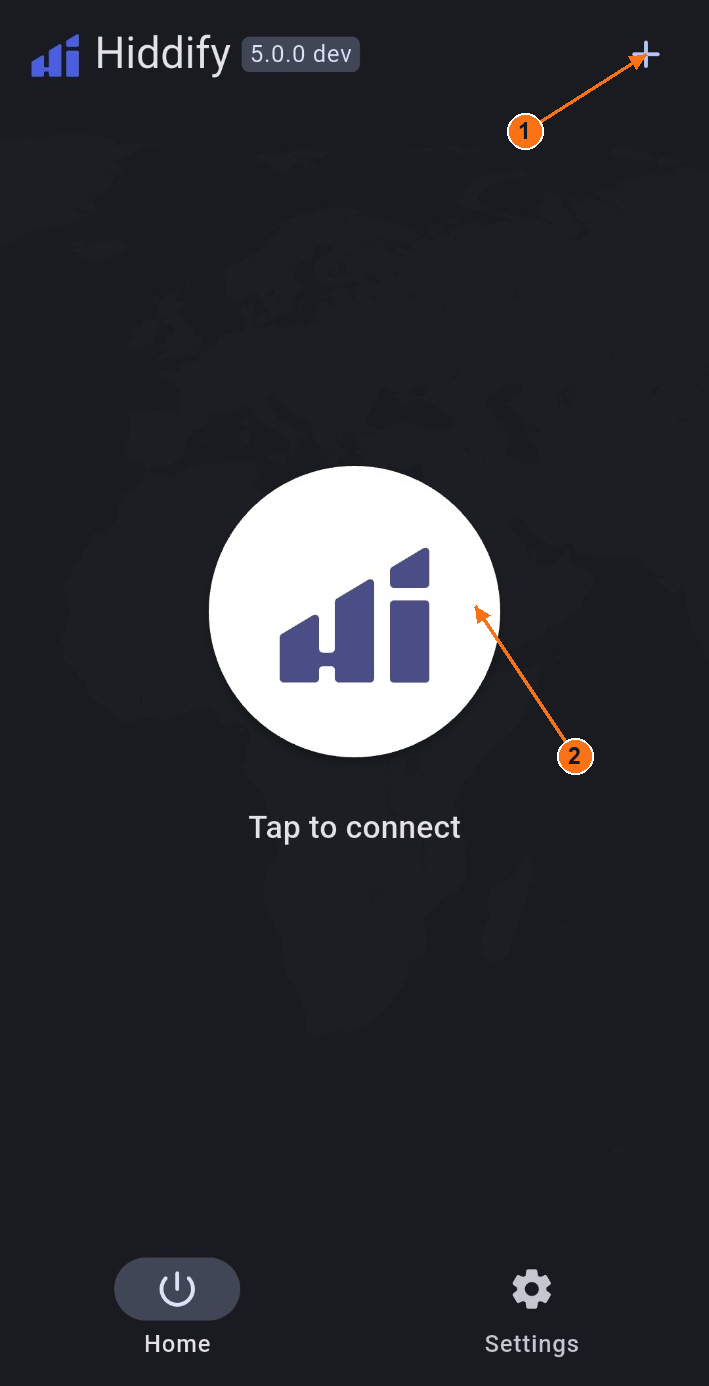
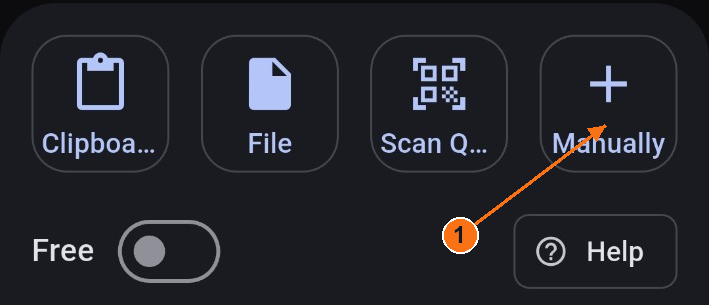
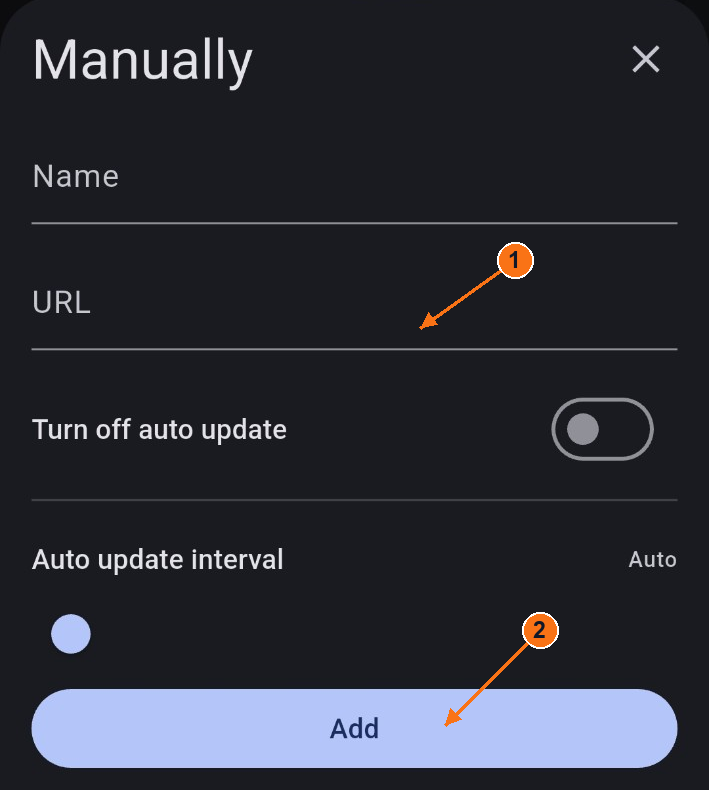
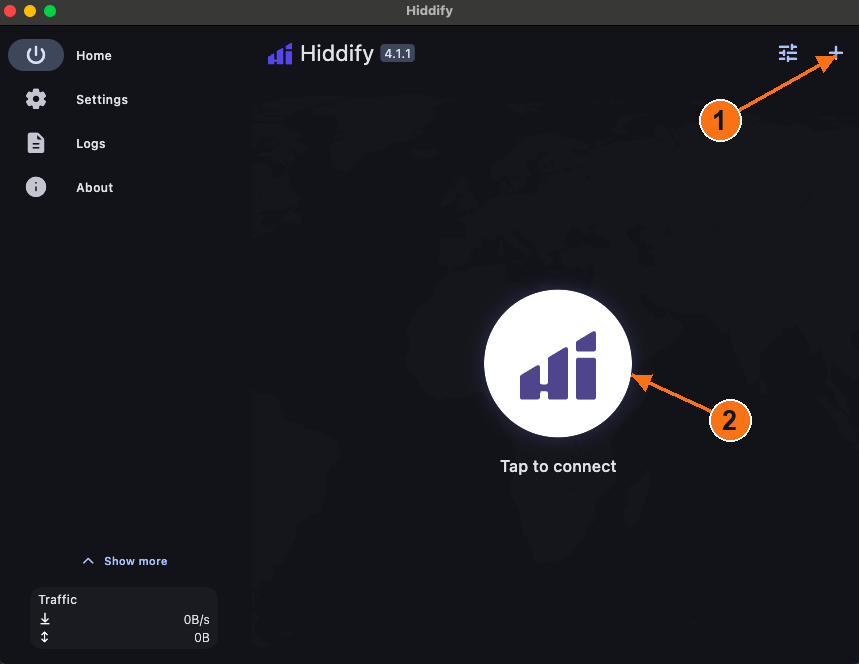
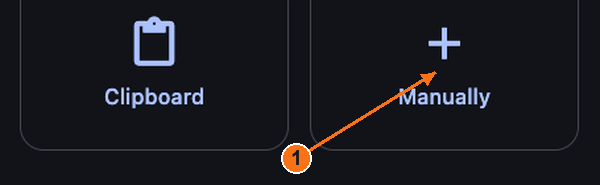
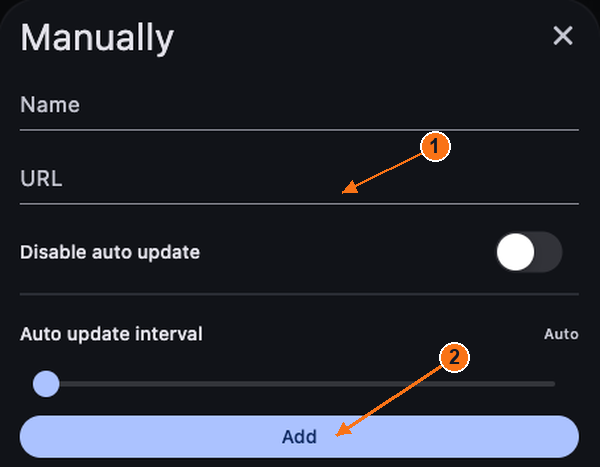
On Home, click + in the top right. The import choices open. Choose Manually, type Novesu in Name, paste your private link in URL, then click Add. The saved profile should appear on Home.
Shortcut: with the link already copied, + → Clipboard imports it without opening the manual form.
1: Add a profile. 2: Connect or disconnect. The pictured app is off. Tap or click to enlarge.Choose Manually to open the link form. Tap or click to enlarge.1: Paste in URL. 2: Add the profile. The pictured fields are intentionally blank. Tap or click to enlarge.
4
Connect / disconnect
Select your saved profile, then click the large centre button labelled Tap to connect. The official guide describes a green button labelled Connected when on. Click the same button again to disconnect; it returns to Tap to connect.
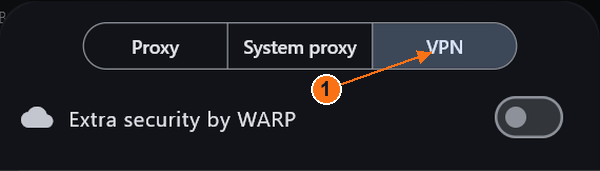
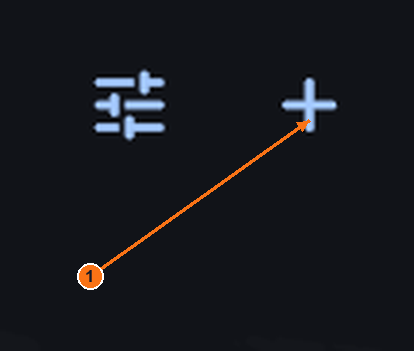
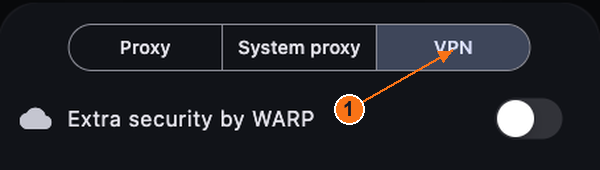
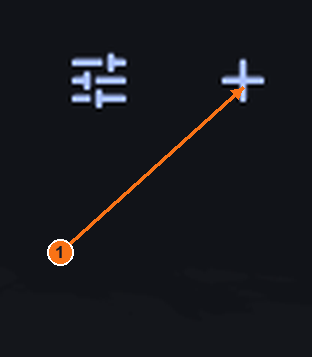
Choose the mode deliberately: the sliders beside + open quick settings. System proxy covers apps that use the system proxy; other apps may bypass it. VPN uses a virtual network interface and needs system permission. It does not remove routing exceptions.
Keep WARP and advanced settings unchanged. Follow the publisher’s privilege instructions if VPN mode cannot start. The supplied screenshots show the off state; a matching connected-state frame is still needed.
VPN mode is selected here. System proxy is a different mode. Tap or click to enlarge.Magnified detail: the + button opens import options. Tap or click to enlarge.
Android
Hiddify on Android
Captured Android version: 5.0.0 dev. Screens reflect the supplied app, not the desktop edition.
Open the official Android download page. If it opens Google Play, tap Install → Open. For an official APK, open the downloaded file, install it and then open Hiddify.
When your subscription is active and device access is enabled: open Account → Connection and choose Connect / install beside your device. Your private access page opens. Copy the subscription link provided there.
3
Import
On Home, tap + in the top right. Import choices open. Choose Manually, enter Novesu in Name, paste your private link in URL and tap Add. A profile should appear on Home.
Shortcut: copy your link first, then choose + → Clipboard. Keep the update settings unchanged.
1: Add a profile. 2: Connect or disconnect. Captured Android interface; app off. Tap or click to enlarge.Choose Manually to open the link form. Clipboard is another import option. Tap or click to enlarge.1: Paste in URL. 2: Add. Empty fields shown. Tap or click to enlarge.
4
Connect / disconnect
With your profile selected, tap the large centre button. On the first connection, Android may ask permission to create a VPN connection; allow it only if you intend to connect.
On: the official guide describes a green button labelled Connected. Off: tap it again; Home returns to Tap to connect. A pending connection or an error is not a connected state.
The Android permission dialog and connected-state screenshot were not supplied. The off state is pictured above.
Choose the macOS download. For the DMG version, open the disk image, install Hiddify in Applications and open it there. Do not use the Windows installer.
When your subscription is active and device access is enabled: open Account → Connection and choose Connect / install beside your device. Your private access page opens. Copy the subscription link provided there.
3
Import
On Home, click + in the top right. The import choices open. Choose Manually, type Novesu in Name, paste your private link in URL, then click Add. The saved profile should appear on Home.
Shortcut: with the link already copied, + → Clipboard imports it without opening the manual form.
1: Add a profile. 2: Connect or disconnect. The pictured app is off. Tap or click to enlarge.Choose Manually to open the link form. Tap or click to enlarge.1: Paste in URL. 2: Add the profile. The pictured fields are intentionally blank. Tap or click to enlarge.
4
Connect / disconnect
Select your saved profile, then click the large centre button labelled Tap to connect. The official guide describes a green button labelled Connected when on. Click the same button again to disconnect; it returns to Tap to connect.
Choose the mode deliberately: the sliders beside + open quick settings. System proxy covers apps that use the system proxy; other apps may bypass it. VPN uses a virtual network interface and needs system permission. It does not remove routing exceptions.
Keep WARP and advanced settings unchanged. Follow the publisher’s privilege instructions if VPN mode cannot start. The supplied screenshots show the off state; a matching connected-state frame is still needed.
VPN mode is selected here. System proxy is a different mode. Tap or click to enlarge.Magnified detail: the + button opens import options. Tap or click to enlarge.
iPhone / iPad
Hiddify on iPhone / iPad
iPhone reference flow · current device screenshots pending.
When your subscription is active and device access is enabled: open Account → Connection and choose Connect / install beside your device. Your private access page opens. Copy the subscription link provided there.
3
Import
The official guide uses Home → + → Manually. Enter a name, paste your private link in URL, then tap Add. Or copy the link first and choose Clipboard. The saved profile appears on Home.
Illustration: macOS; iPhone controls may differ. URL-entry example only, not an iPhone screenshot. Tap or click to enlarge.
4
Connect / disconnect
Select your imported profile and tap the large centre button. The official iPhone installation guide says the first connection asks to add a VPN configuration: choose Allow if you intend to connect.
The usage guide describes a green button labelled Connected when on. Tap it again to disconnect; it returns to Tap to connect.
iOS reference flow: documentation and publisher references, not a real-device test. A current iPhone import, permission and on/off capture is still needed. No App Store artwork is republished here.
Choose the Windows download on the official page. Open the downloaded installer and follow its setup steps, then open Happ. Use the installer that matches your PC.
When your subscription is active and device access is enabled: open Account → Connection and choose Connect / install beside your device. Your private access page opens. Copy the subscription link provided there.
3
Import
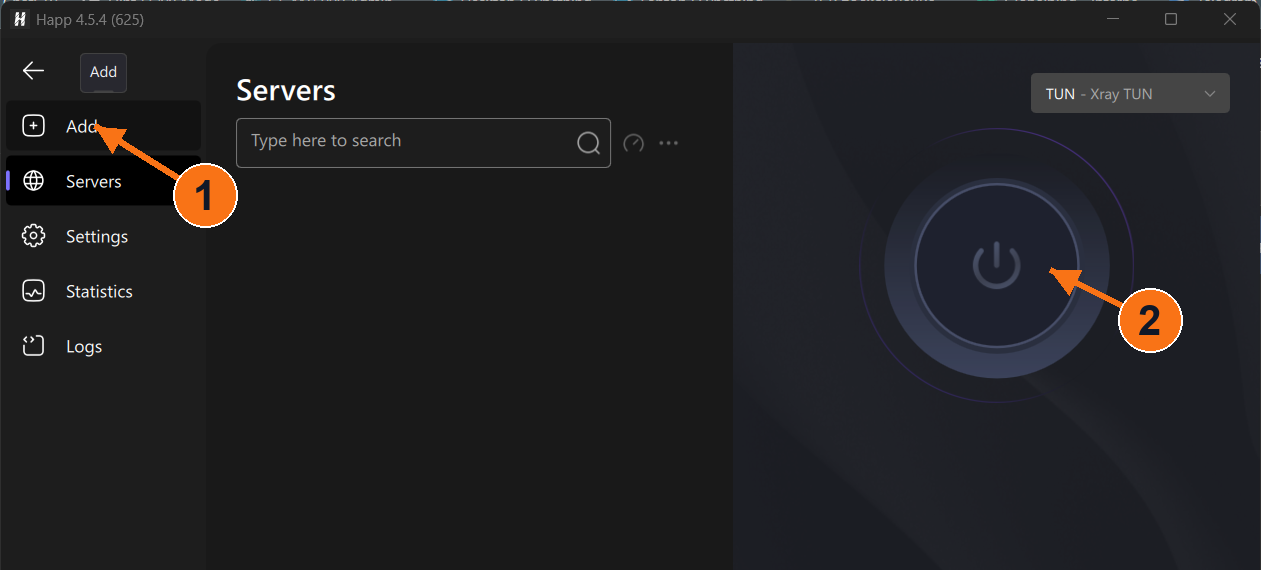
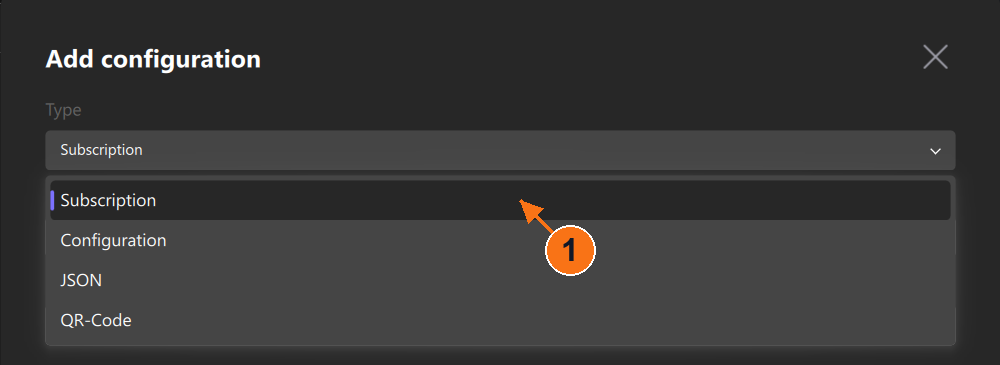
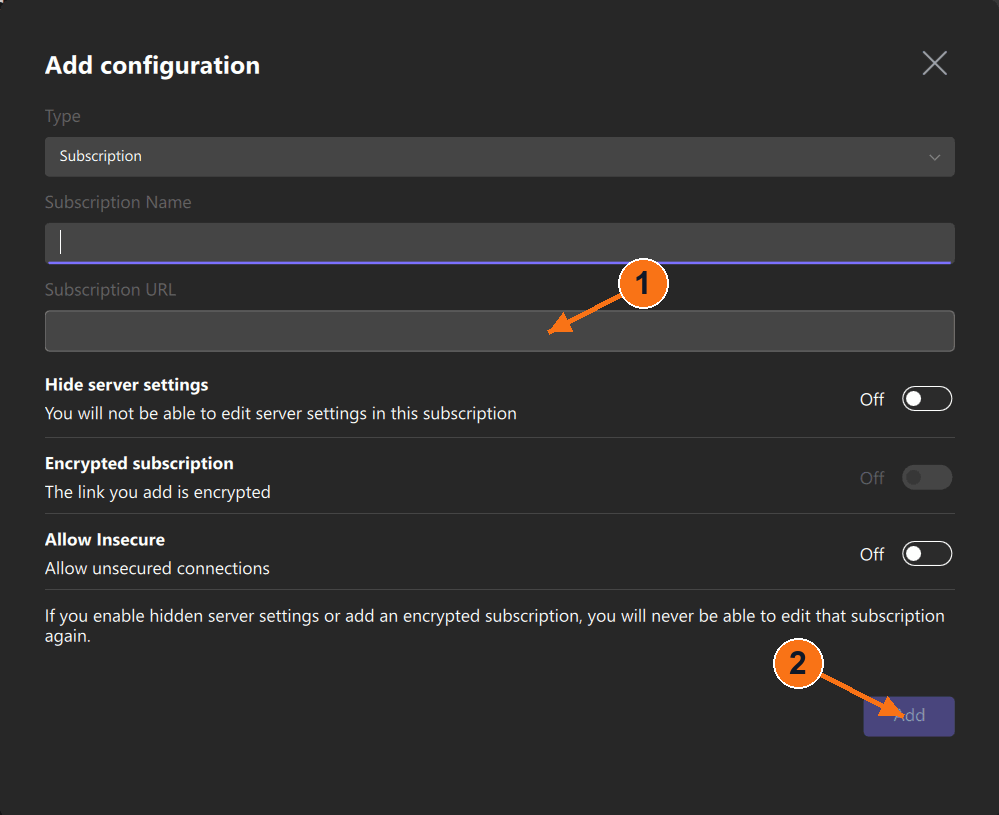
Click Add (the + icon in the left sidebar). In Add configuration, choose Type → Subscription. Enter Novesu as Subscription Name, paste your link into Subscription URL, then click Add. The server list should fill.
Subscription imports an updating list; Configuration is for a single configuration. Leave Allow Insecure off and leave the other switches unchanged.
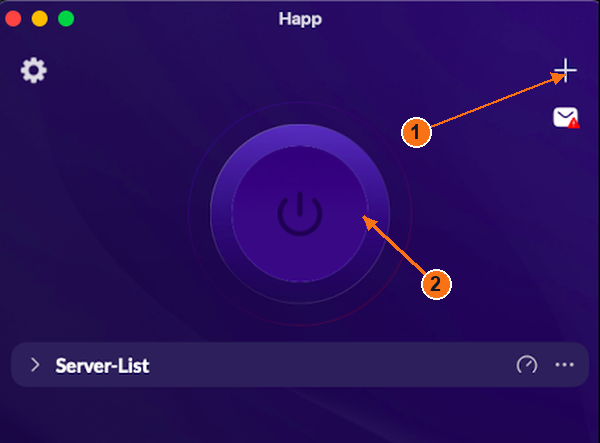
1: Add opens the import form. 2: Power controls the connection. Empty list, app off. Tap or click to enlarge.Choose Subscription, not Configuration. Tap or click to enlarge.1: Paste in Subscription URL. 2: Add. Empty fields shown. Tap or click to enlarge.
4
Connect / disconnect
After import, choose a server from your subscription, then press the large power button shown above. Press the same button again to disconnect.
Check the result: wait for the app’s connection status to settle without an error. An empty server list, a ping result or a pressed button alone does not prove a connection. The pictured dark power button is the off/empty state.
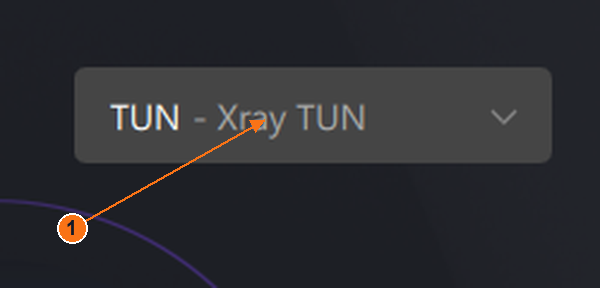
The captured Windows selector reads TUN - Xray TUN. A system-proxy mode covers only apps that use that proxy. TUN and routing exclusions change which traffic is handled; do not assume every app is covered.
Magnified Windows mode selector: TUN - Xray TUN. Tap or click to enlarge.
Connected-state appearance and the loaded-server selection screen still need matching screenshots for this platform. Do not infer a successful connection from these empty-state examples.
Android
Happ on Android
App version is not visible in the supplied screenshots.
Open the official Android download page. If it opens Google Play, tap Install → Open. For an official APK, open the downloaded file, install it and then open Happ.
When your subscription is active and device access is enabled: open Account → Connection and choose Connect / install beside your device. Your private access page opens. Copy the subscription link provided there.
3
Import
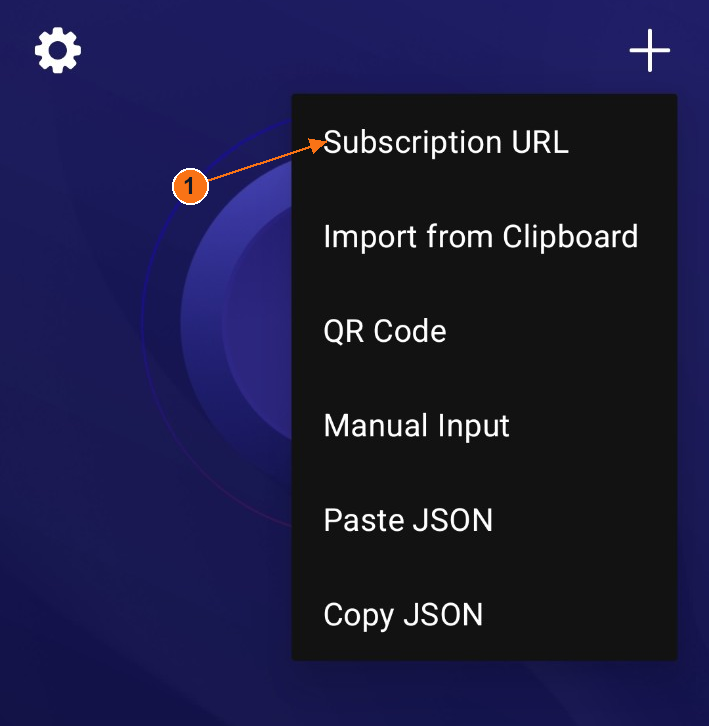
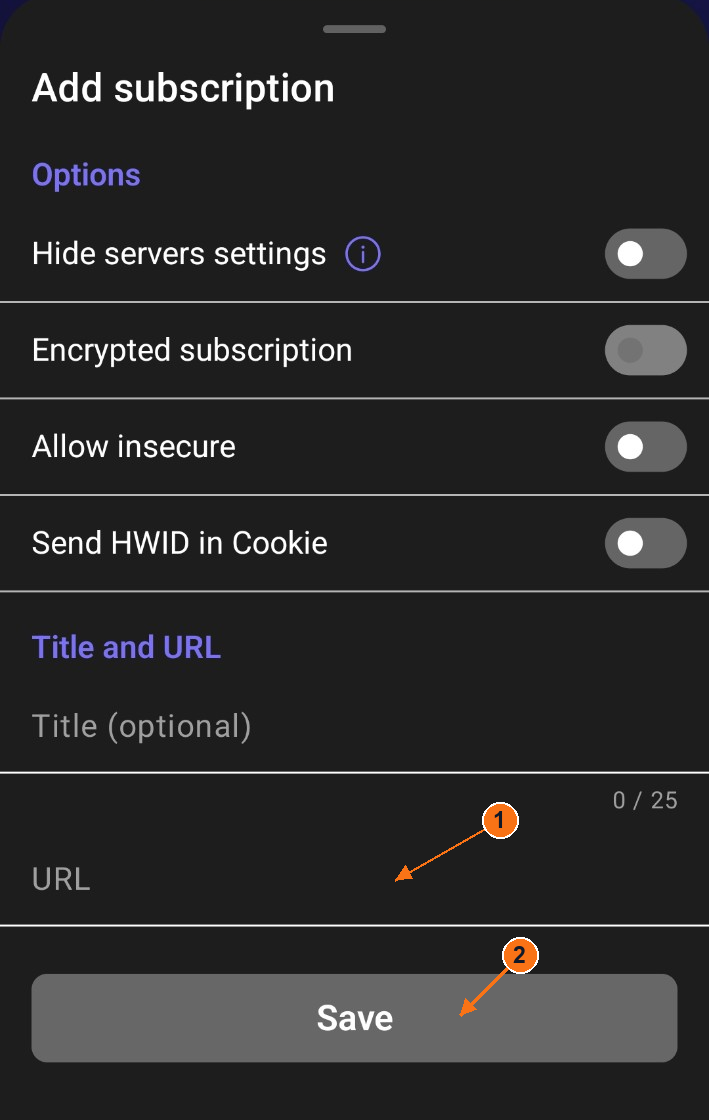
Tap + in the top right, then Subscription URL. An Add subscription sheet opens. Enter a title if you want, paste your link into URL and tap Save. The server list should fill.
Alternatively, copy the link first, then choose + → Import from Clipboard. Leave Allow insecure off and leave the other switches unchanged.
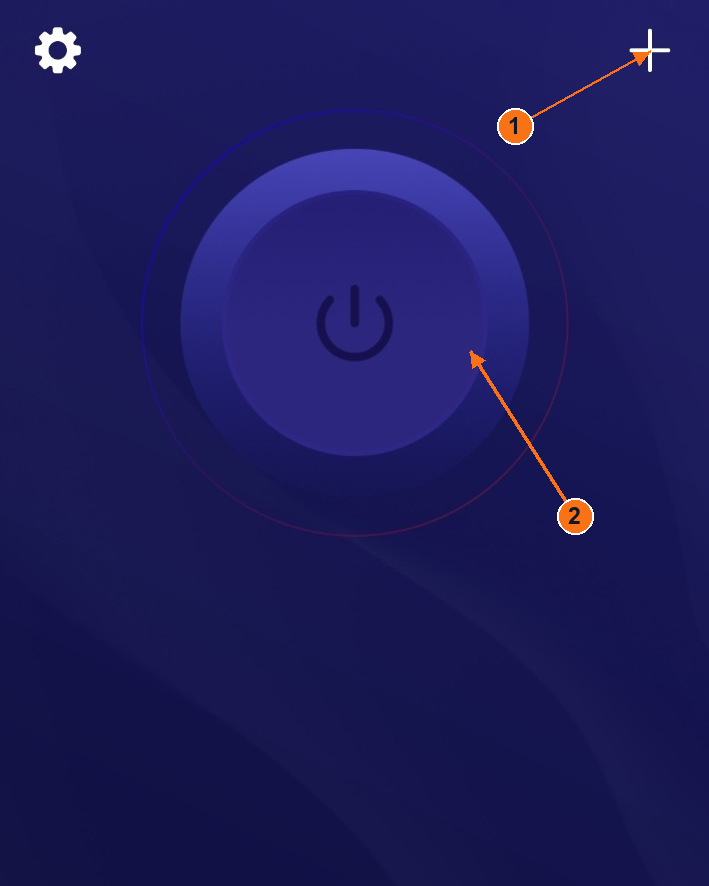
1: Open import choices. 2: Power controls the connection. App off; HWID area cropped away. Tap or click to enlarge.Choose Subscription URL to open the form. HWID area cropped away. Tap or click to enlarge.1: Paste in URL. 2: Save. No subscription value shown. Tap or click to enlarge.
4
Connect / disconnect
After import, choose a server from your subscription, then press the large power button shown above. Press the same button again to disconnect.
Check the result: wait for the app’s connection status to settle without an error. An empty server list, a ping result or a pressed button alone does not prove a connection. The pictured dark power button is the off/empty state.
The Android VPN permission dialog was not supplied. Its exact wording still needs a matching capture; do not confuse an import form with system permission to connect.
Connected-state appearance and the loaded-server selection screen still need matching screenshots for this platform. Do not infer a successful connection from these empty-state examples.
macOS
Happ on macOS
App version is not visible in the supplied screenshots.
Choose the macOS version on the official download page. For the App Store version, choose Get, complete the installation and open Happ. Do not download the Windows installer.
When your subscription is active and device access is enabled: open Account → Connection and choose Connect / install beside your device. Your private access page opens. Copy the subscription link provided there.
3
Import
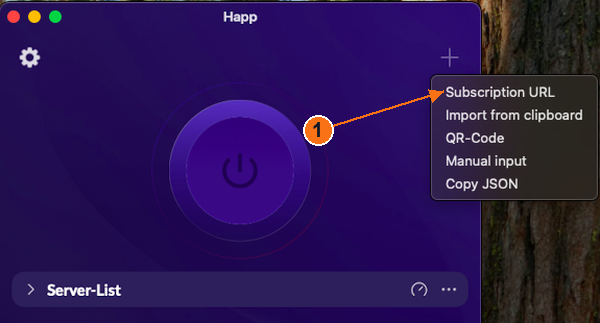
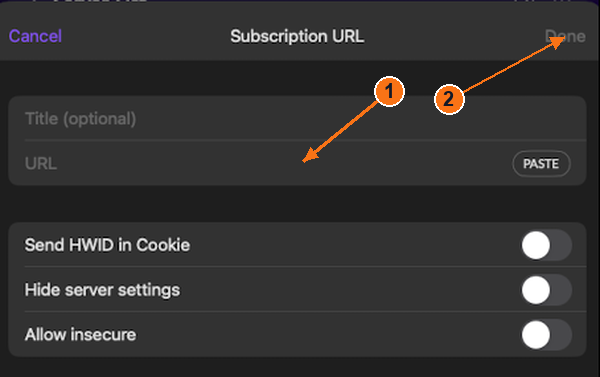
Click + in the top right, then Subscription URL. The subscription sheet opens. Enter a title if you want, paste into URL (or use PASTE) and click Done at the top right. Your server list should fill.
Alternatively, copy your link first, then choose + → Import from clipboard. Leave Allow insecure off and leave the other switches unchanged.
1: Open import choices. 2: Power controls the connection. macOS app off. Tap or click to enlarge.Choose Subscription URL. This is the macOS menu. Tap or click to enlarge.1: Paste in URL. 2: Done. Empty fields shown. Tap or click to enlarge.
4
Connect / disconnect
After import, choose a server from your subscription, then press the large power button shown above. Press the same button again to disconnect.
Check the result: wait for the app’s connection status to settle without an error. An empty server list, a ping result or a pressed button alone does not prove a connection. The pictured dark power button is the off/empty state.
The supplied macOS set does not show network permissions or a mode selector. Windows TUN controls are not used to illustrate macOS.
Connected-state appearance and the loaded-server selection screen still need matching screenshots for this platform. Do not infer a successful connection from these empty-state examples.
iPhone / iPad
Happ on iPhone / iPad
iPhone reference flow · current device screenshots pending.
When your subscription is active and device access is enabled: open Account → Connection and choose Connect / install beside your device. Your private access page opens. Copy the subscription link provided there.
3
Import
The publisher’s iPhone reference shows + → Subscription URL. If your installed menu matches, open it, paste your private link in URL, optionally enter a title, then tap Done. A subscription list should appear. Clipboard import is also documented by the publisher.
Leave the other switches unchanged. The supplied macOS form below illustrates the URL field only; current iPhone wording still needs a device capture.
Illustration: macOS; iPhone controls may differ. URL-entry example only, not an iPhone screenshot. Tap or click to enlarge.
4
Connect / disconnect
Choose a server from your imported subscription, then tap the large power button. Use the same button to disconnect. Review any iOS VPN configuration request before allowing the app to connect.
The publisher’s iPhone reference shows CONNECTED and elapsed time for an active session. A blank server list or ping alone is not a connection. The exact on/off appearance in the installed iOS build still needs confirmation.
iOS reference flow: documentation and publisher references, not a real-device test. A current iPhone import, permission and on/off capture is still needed. No App Store artwork is republished here.
Windows
Karing on Windows
App version is not visible in the supplied screenshots.
Choose the Windows download on the official page. Open the downloaded installer and follow its setup steps, then open Karing. Use the installer that matches your PC.
When your subscription is active and device access is enabled: open Account → Connection and choose Connect / install beside your device. Your private access page opens. Copy the subscription link provided there.
3
Import
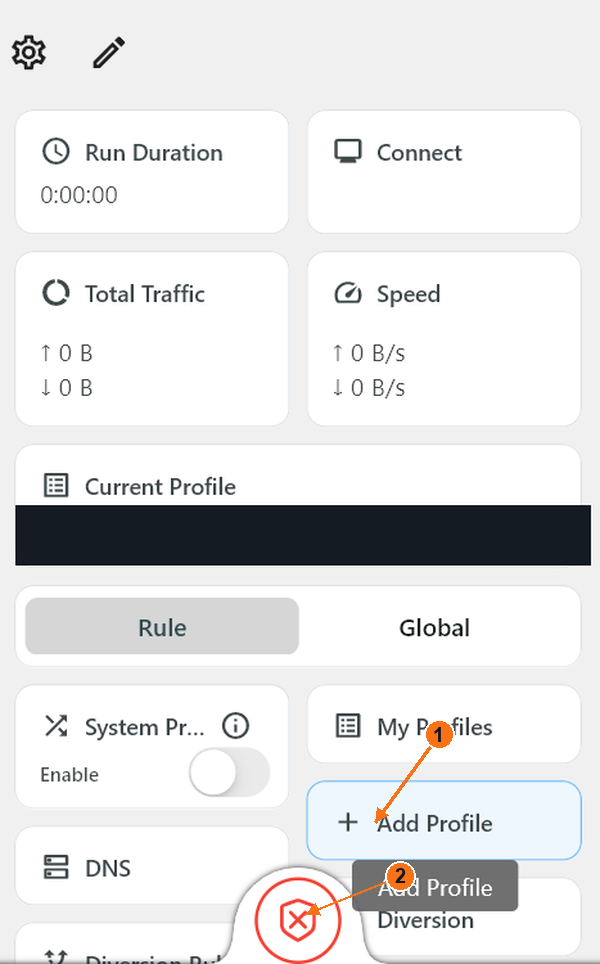
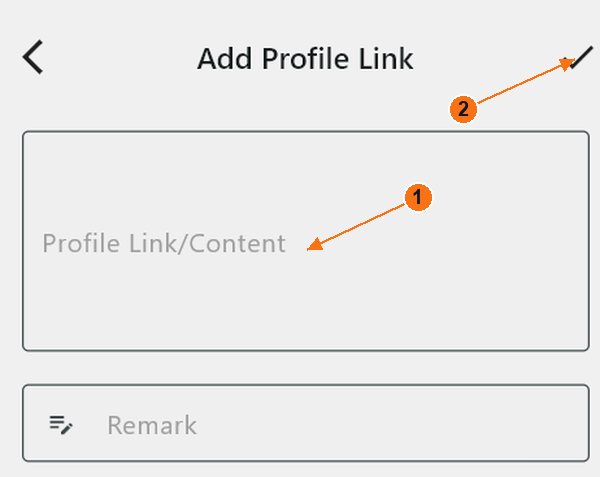
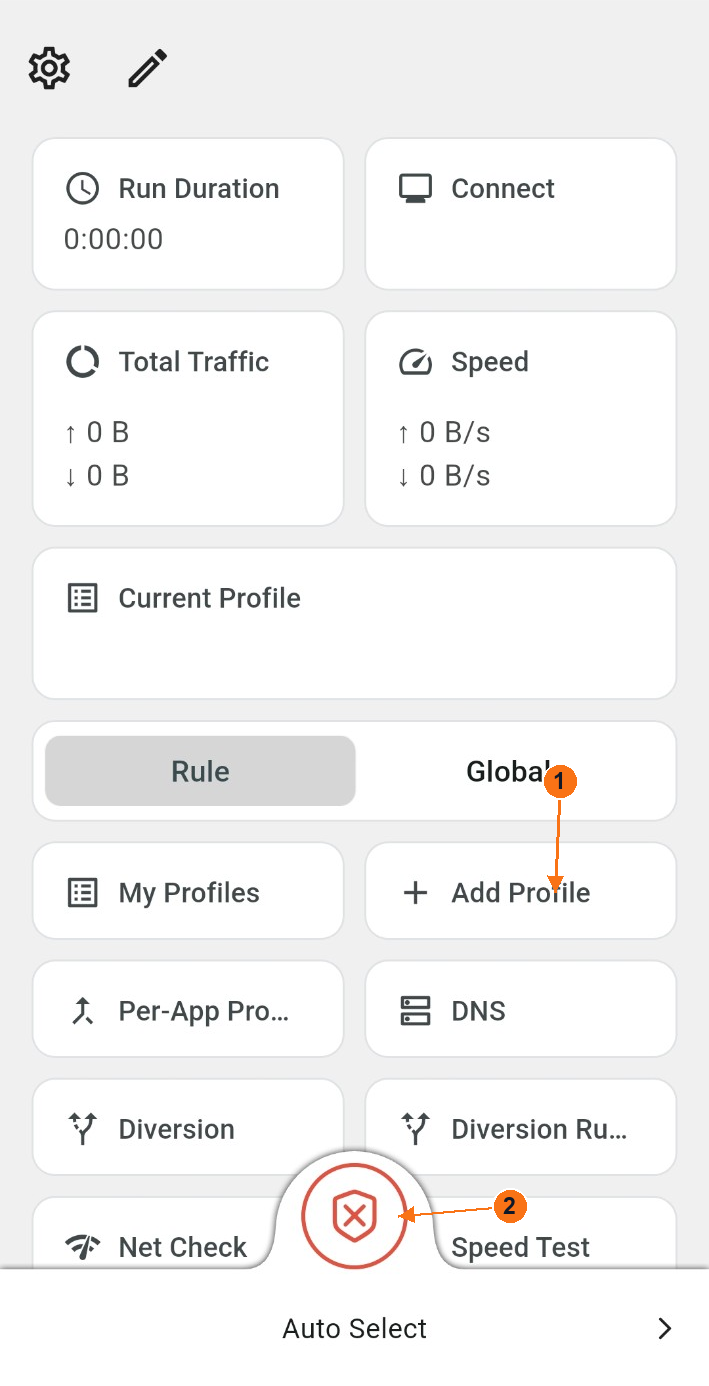
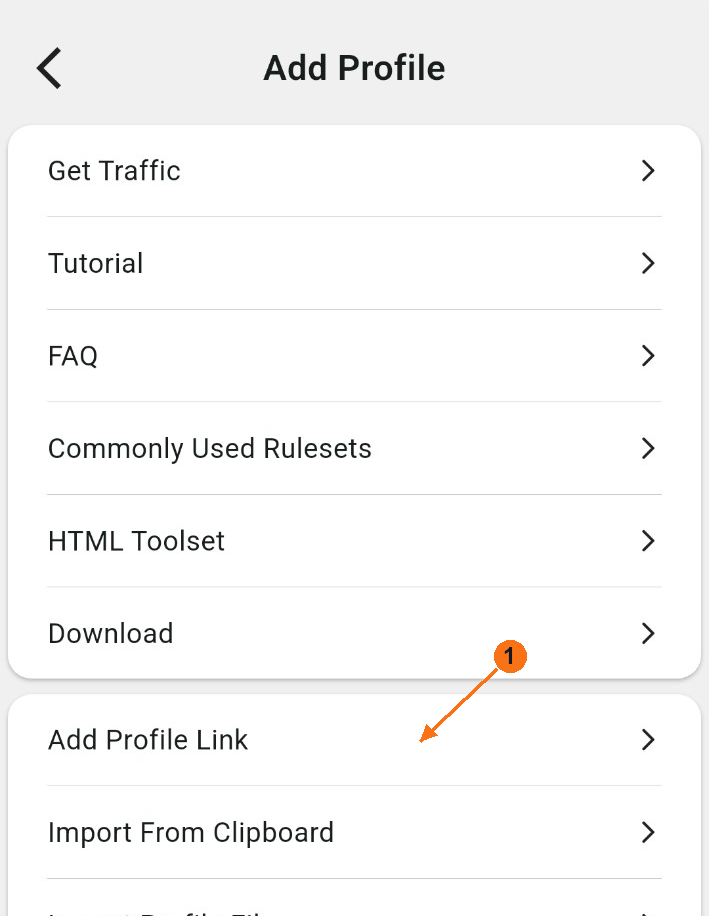
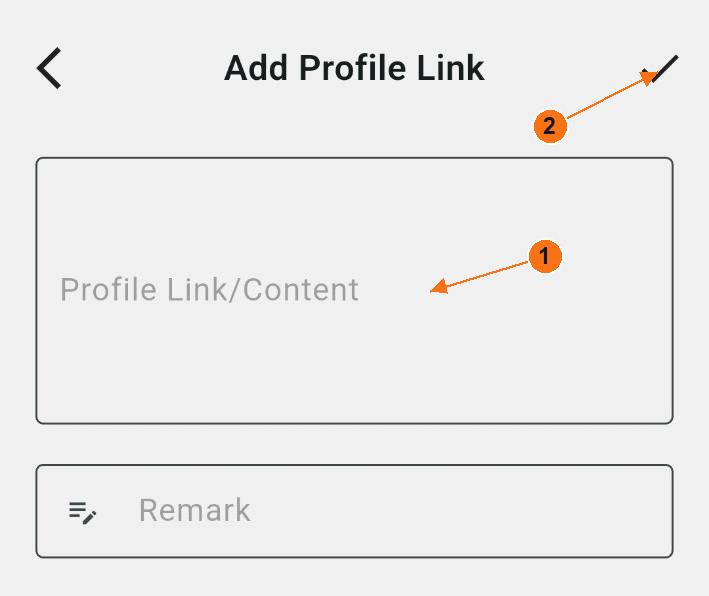
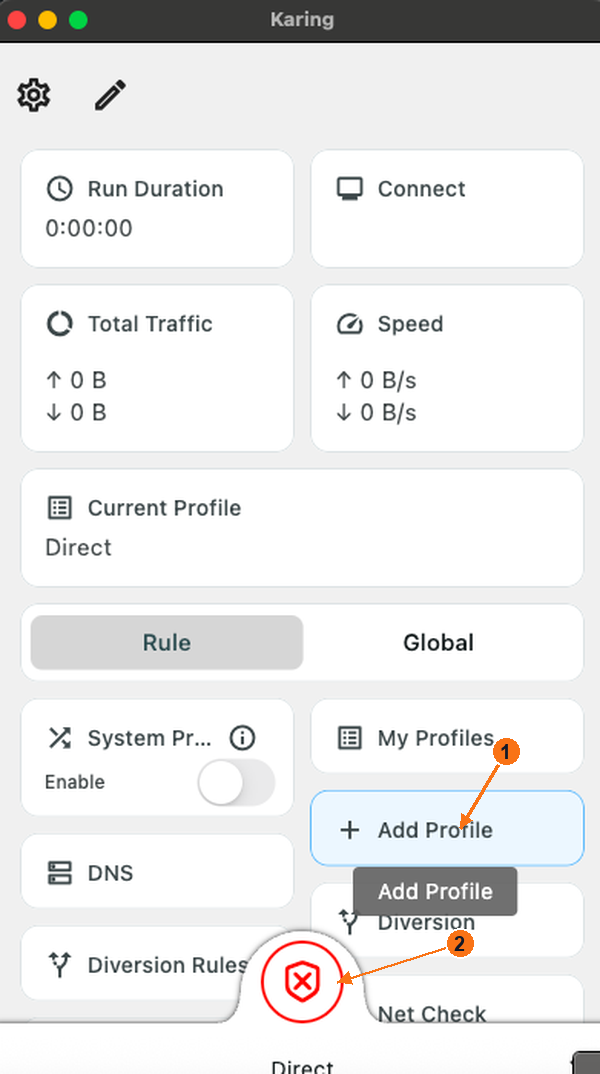
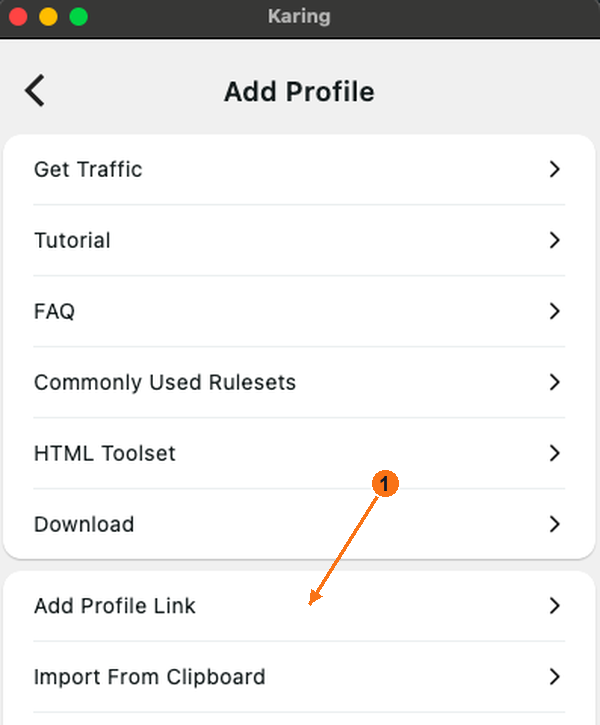
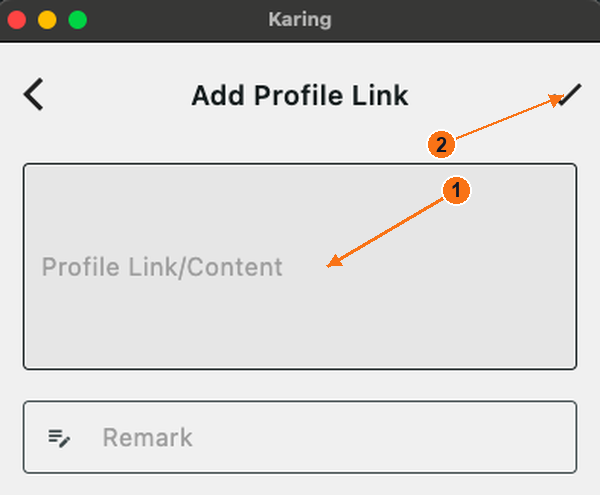
On Home, choose + Add Profile → Add Profile Link. The link form opens. Paste your subscription into Profile Link/Content, enter Novesu in the required Remark field, then choose the ✓ at the top right to save. Use the back arrow to return Home.
You can also copy the link first and choose Add Profile → Import From Clipboard. Use My Profiles to select your imported subscription if it is not the current profile.
The intermediate Windows Add Profile menu is missing from this set; the path is documented by Karing. Android and macOS menu screenshots are not substituted.
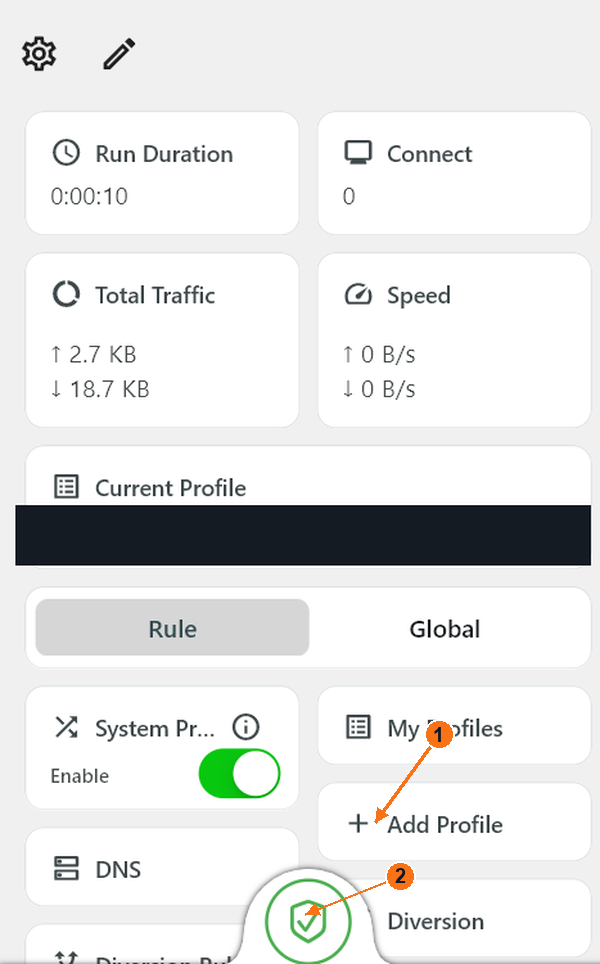
1: Add Profile opens import options. 2: Shield controls on/off. Red cross: off. Private profile name removed where present. Tap or click to enlarge.1: Paste in Profile Link/Content. 2: Save with the top-right check mark. Empty fields shown. Tap or click to enlarge.
4
Connect / disconnect
Make sure Current Profile is your imported subscription, not an empty or Direct profile. Press the shield at the bottom centre to start. Press the same shield again to stop.
Off: a red shield with a cross. On: a green shield; check that Run Duration advances. The large tile labelled Connect shows a connection count, not the on/off control.
System Proxy affects apps that use the operating system’s proxy. The shield or a green switch alone does not prove all-device VPN coverage. Rules may send some traffic directly. Do not change Rule / Global or advanced routing just to match a picture.
Green shield: engine on. Confirm Current Profile and mode; this is not proof that every app uses the VPN. Tap or click to enlarge.
Android
Karing on Android
App version is not visible in the supplied screenshots.
Open the official Android download page. If it opens Google Play, tap Install → Open. For an official APK, open the downloaded file, install it and then open Karing.
When your subscription is active and device access is enabled: open Account → Connection and choose Connect / install beside your device. Your private access page opens. Copy the subscription link provided there.
3
Import
On Home, choose + Add Profile → Add Profile Link. The link form opens. Paste your subscription into Profile Link/Content, enter Novesu in the required Remark field, then choose the ✓ at the top right to save. Use the back arrow to return Home.
You can also copy the link first and choose Add Profile → Import From Clipboard. Use My Profiles to select your imported subscription if it is not the current profile.
First launch: which screens appear?
The supplied sequence shows Your Privacy Comes First, then Language, TV Settings, Country Or Region, presets and Settings. Read the privacy notice and use Accept & Continue only if you agree. Choose English → Next, keep TV Mode off on a phone, choose your actual region and continue with Next. Review the preset choices; finish with Done. These app setup screens are separate from Android’s VPN permission.
1: Add Profile opens import options. 2: Shield controls on/off. Red cross: off. Private profile name removed where present. Tap or click to enlarge.Choose Add Profile Link to open the link form. Tap or click to enlarge.1: Paste in Profile Link/Content. 2: Save with the top-right check mark. Empty fields shown. Tap or click to enlarge.
4
Connect / disconnect
Make sure Current Profile is your imported subscription, not an empty or Direct profile. Press the shield at the bottom centre to start. Press the same shield again to stop.
Off: a red shield with a cross. On: a green shield; check that Run Duration advances. The large tile labelled Connect shows a connection count, not the on/off control.
The Android VPN permission dialog and a matching connected frame are still needed.
macOS
Karing on macOS
App version is not visible in the supplied screenshots.
Choose the macOS version on the official download page. For the App Store version, choose Get, complete the installation and open Karing. Do not download the Windows installer.
When your subscription is active and device access is enabled: open Account → Connection and choose Connect / install beside your device. Your private access page opens. Copy the subscription link provided there.
3
Import
On Home, choose + Add Profile → Add Profile Link. The link form opens. Paste your subscription into Profile Link/Content, enter Novesu in the required Remark field, then choose the ✓ at the top right to save. Use the back arrow to return Home.
You can also copy the link first and choose Add Profile → Import From Clipboard. Use My Profiles to select your imported subscription if it is not the current profile.
1: Add Profile opens import options. 2: Shield controls on/off. Red cross: off. Private profile name removed where present. Tap or click to enlarge.Choose Add Profile Link to open the link form. Tap or click to enlarge.1: Paste in Profile Link/Content. 2: Save with the top-right check mark. Empty fields shown. Tap or click to enlarge.
4
Connect / disconnect
Make sure Current Profile is your imported subscription, not an empty or Direct profile. Press the shield at the bottom centre to start. Press the same shield again to stop.
Off: a red shield with a cross. On: a green shield; check that Run Duration advances. The large tile labelled Connect shows a connection count, not the on/off control.
System Proxy affects apps that use the operating system’s proxy. The shield or a green switch alone does not prove all-device VPN coverage. Rules may send some traffic directly. Do not change Rule / Global or advanced routing just to match a picture.
A matching connected frame with an imported subscription is still needed. A macOS frame using Direct was excluded as connection evidence.
iPhone / iPad
Karing on iPhone / iPad
iPhone reference flow · current device screenshots pending.
When your subscription is active and device access is enabled: open Account → Connection and choose Connect / install beside your device. Your private access page opens. Copy the subscription link provided there.
3
Import
The current cross-platform guide uses Add Profile → Add Profile Link; the publisher’s iPhone reference instead shows Settings → Add Subscription Link. Follow the matching entry in your installed app, paste your private link into the large link field and save using that screen’s add/save control.
Enter Novesu in Remark; do not leave it blank. The precise iPhone save control needs a device capture. The Mac check mark below is a Mac example, not a verified iPhone button.
Illustration: macOS; iPhone controls may differ. URL-entry example only, not an iPhone screenshot. Tap or click to enlarge.
4
Connect / disconnect
Select your imported subscription, then use the on/off control on Home. The publisher’s iPhone reference shows a green switch and Connected; the current Mac shield is not used to illustrate an iPhone control.
Disconnect inside Karing using the same on/off control. If Always open connection is enabled, the system VPN switch may reconnect automatically; the official settings guide says to disconnect in Karing. Review any iOS configuration request before connecting.
iOS reference flow: documentation and publisher references, not a real-device test. A current iPhone import, permission and on/off capture is still needed. No App Store artwork is republished here.
iPhone / iPad examples are labelled where they show macOS. Actual iPhone screenshots and current control verification remain pending.